BestSync Q&A
How do I synchronise with my FTP server on the Internet?
BestSync supports synchronising with FTP server directly.
For the setting steps, Please refer tothis tutorial document.
I can connect to FTP server with no problem with in windows explorer, but BestSync can not, why?
Because FTP needs to communicate with FTP server by network, it need to adjust the setting of Windows Firewall or the firewall setting of anti-virus software. Please add BestSyncApp.exe and BestSyncSvc.exe to the exception list of Windows Firewall or anti-virus software.
If the problem still exists, please try the "Passive" mode to connect to the FTP server.
If the problem still exists, please start the Preview of the task, and look at the FTP response window to see what error happens when connect to the FTP server.
How to set the firewall setting for FTP transfer?
- Add BestSyncApp.exe and BestSyncSvc.exe to the allowed list of the firewall.
- Add Port 21 or 990 (FTPS according to the server settings) to the exception list of the firewall.
In FTP server side, select the transfer mode (Passive or Active), Passive mode is recommended.
If Passive Mode is used:
- In FTP server side, set the port range used for the data channel.
- Add this port rang to the allowedreceivingport list of the firewall of theFTP server.
- Add this port rang to the allowedsendingport list of the firewall of theclient(where BestSync is installed).
If Active Mode is used:
- Set the port range in “Option”/”Active Mode” of BestSync.
- Add this port rang to the allowedsendingport list of the firewall of theFTP server.
- Add this port rang to the allowedreceivingport list of the firewall of theclient(where BestSync is installed).
Why it is so slow when scanning changed files of FTP server?
The speed problem may be the following two causes:
1. The firewall setting is not correct.
FTP protocol uses different TCP port for each data transfer, and if the TCP port is not allowed by the firewall, the transfer may be blocked, and it will not end until long timeout.
If it is this case, please set the firewall setting correctly as the above Q&A.
2. The FTP server does not support MLSD command.
If the FTP server does not support MLSD command that can list files in the FTP server with accurate timestamp,
(LIST command can only give date timestamp, or timestamp without 4 digits year number, it is not suitable for synchronisation,)
BestSync needs to call MFMT, MDTM or UTIME once for each file for getting its accurate timestamp at the first time scanning.
This action takes long time if the FTP folder has many files in it. But from the second time of synchronisation, BestSync uses a
timestamp database to extract the different timestamp from the last time, and decrease the calling times of MFMT, MDTM or UTIME
command, this can reduce the synchronisation time dramatically.
To decrease the synchronisation time, you need to select a FTP server that support MLSD command, such as FileZilla.
Why BestSync ignores the changed files?
BestSync compares file name and file time in two-way sync. If in one-way sync and "Mirror" mode in "Delete" page is selected, BestSync also compares the file size. If the sync-task is synchronising with FTP server, and the FTP server does not support setting file time command (one of MDTM, MFMT, UTIME) and getting accurate file time command (one of MLSD, MDTM), the time difference between files must be more than 180 seconds , otherwise BestSync just ignore the change. If the FTP supports these kinds of commands, the time difference must more than 120 seconds (BestSync 2015 before), or 90 seconds (BestSync 2015 later).
How to compress a folder to a ZIP file and upload the ZIP file to FTP server automatically?
You can accomplish this task by setup two tasks.
Task1: FolderA==>FolderB\ZIP file, and specify a schedule to run this task
automatically, such as run the task in every 10 minutes.
Task2: FolderB (include the ZIP file)==>FTP Folder), Setup the Task2 run after
the Task1 by the "Application" setting of the Task1.
How to get the FTP command and response log file?
Please following these steps:
1. Select the FTP task in the task list, by click the task item in the task list.
2. Start the Preview of the task, by click the "Preview" button on the
toolbar.
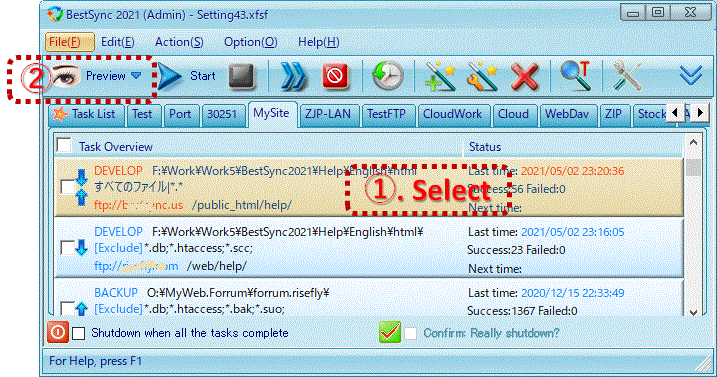
3. In the Preview Window, after the file scanning, click the "Start" button on the toolbar.
4. Right click on the FTP Log Window, click the "Save log message" menu to
save the FTP command and Log to a file.